How to add click and collect time slots on Shopify
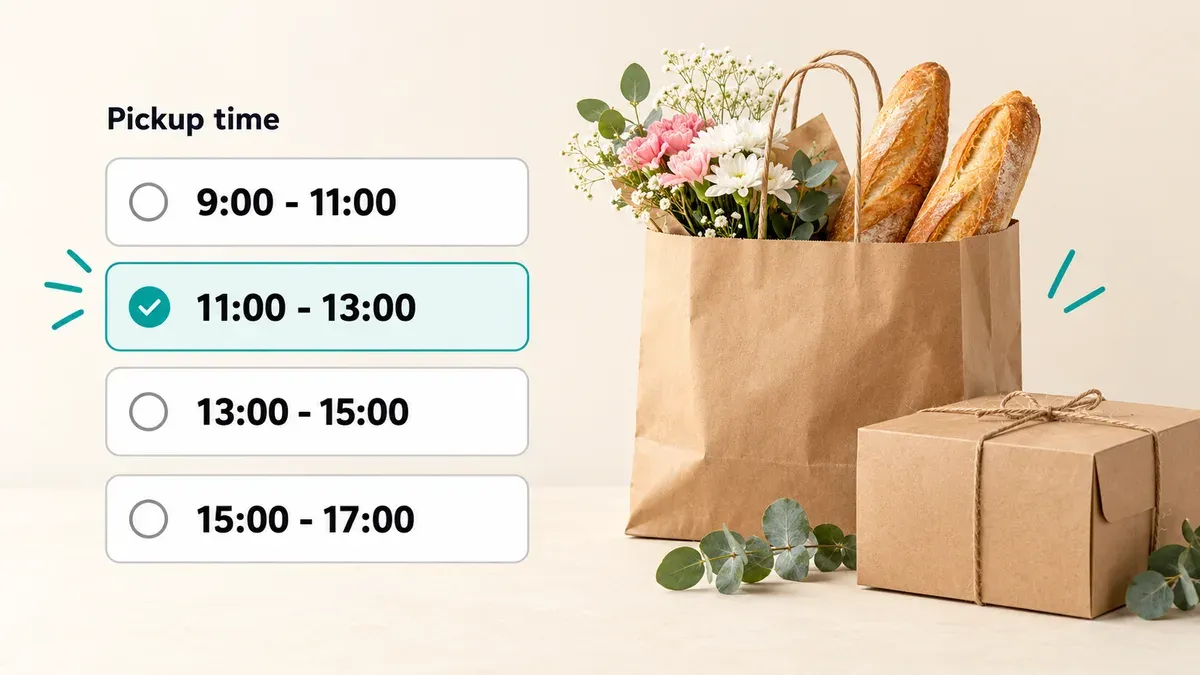
Shopify’s local pickup lets customers choose which of your locations to collect from, and tells them roughly when the order will be ready. It doesn’t let them choose a day or a time slot. To offer click and collect time slots, turn on local pickup in Shopify, then add an app that shows a pickup date and time picker. With Buunto – Delivery Date Picker, customers choose their collection day and slot on the product page, the cart or the cart drawer, and the slot is saved on the order.
What Shopify’s local pickup does on its own
When you turn on pickup in store, customers can choose “Pickup” at checkout and pick one of your locations. You set a processing time for each location, so checkout tells them when the order is expected to be ready, and you mark it ready when it is. Shopify then sends a “Ready for pickup” email with your collection instructions (Shopify Help Center).
That’s enough if customers can walk in any time once the order is ready. It isn’t if you need to know when each customer will turn up: a bakery baking each order fresh, a florist who doesn’t want bouquets waiting in the shop all day, or a counter that can only hand over so many orders an hour.
Step 1: Turn on local pickup in Shopify
- In your Shopify admin, go to Settings > Shipping and delivery.
- Under Pickup in store, choose the location customers will collect from.
- Turn on pickup for that location, set the processing time and add your pickup instructions, such as where to park or which door to use.
- Click Save, and repeat for each shop.
Step 2: Let customers choose a pickup day and time slot
Install Buunto and add the date picker to your theme. Our installation guide covers the product page, the cart and the cart drawer. Then:
- Turn on Store pickup under Delivery methods, and choose the days you offer collection. Pickup can have different days from local delivery, for example collection Monday to Saturday and delivery only at the weekend.

- Add your pickup locations, so customers choose their shop in the date picker. You can show each location’s address with a Google Maps link.

- Turn on time slots and create the collection windows you want to offer, such as 9:00 to 11:00, 11:00 to 13:00 and 13:00 to 15:00.
- Set a preparation time for pickup slots, so customers can’t choose a slot you can’t have ready in time. If you need a day’s notice, set it to 24 hours (how to set different cut-off times for delivery and pickup).
- Block holidays and add one-off dates, such as an extra opening on a bank holiday weekend.
Customers now choose their shop, day and time slot before they check out. Buunto checks at checkout that a date was chosen, so no pickup order arrives without one.
Step 3: Make sure everyone sees the slot
The chosen day and time are saved on the order: in the order details, in tags and in your Shopify admin, so your team can see who is coming when. They also appear on POS receipts. You can add them to the emails your customers get, including Shopify’s “Ready for pickup” email (how to show the chosen date and time in the pickup email), and to your packing slips (packing slip guide).
Optional: Limit how many orders each slot can take
If your counter can only hand over 15 orders an hour, set a limit on each time slot. When a slot is full, customers choose another one. You can also give each pickup location its own daily limit, and set a separate daily limit for pickup and for delivery. Read more in how to limit orders per day on Shopify.
Which plan you need
Pickup dates, time slots and locations work on every Buunto plan, including Free, which covers 10 orders with a date each month. Order limits are on the Advanced plan ($19.99 a month) and up. Every paid plan has a 14-day free trial.
Tips for click and collect slots
- Match your slots to your opening hours. Don’t offer a 15:00 to 17:00 slot if you close at 16:00.
- Keep slots wide enough. Two-hour windows give customers room to be late without missing their slot.
- Set preparation time per method. Collection can often be quicker than delivery, so it doesn’t need the same notice.
- Put the slot in the pickup email. Customers check their inbox on the way to the shop.
See how this works for bakeries and florists, or try Buunto free on the Shopify App Store.